By OneFit AI
Connect OneFit AI to Claude and ChatGPT: Ask About Your Real Training Data
You already ask Claude or ChatGPT about training. The trouble is that they have never seen yours. They give you a sensible answer for an average lifter, and you fill in the gaps by pasting numbers into the chat.
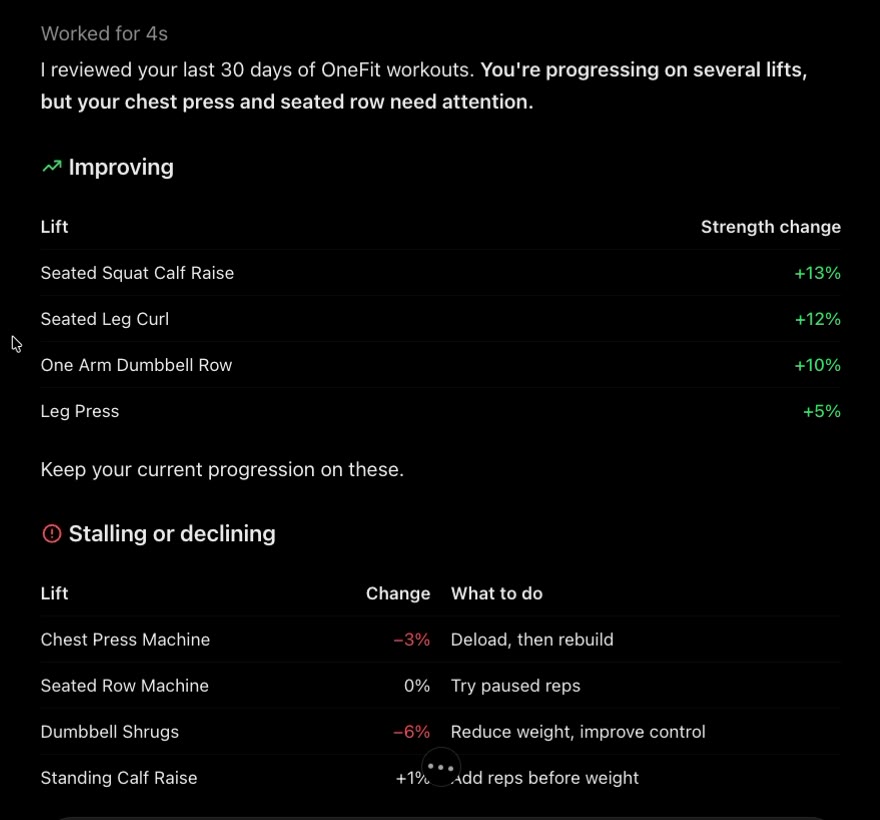
OneFit AI now plugs straight into them. Connect once and you can ask "Am I actually progressing on bench?" or "Which lifts are stalling?" in the assistant you already use, and it answers from your logged sets, your plan, your meals and your weigh-ins. It takes about a minute, it is read only, and it works on the free plan.
The address is the same everywhere:
https://onefitai.com/mcp
What you can ask
Anything you would ask a coach who has your training log open. A few that work well:
- "How has my training progress been going?"
- "Which of my lifts are stalling, and what's one change for each?"
- "Am I doing enough sets for my back and legs?"
- "Did I hit my protein target this week? What should I eat tonight to close the gap?"
- "What's the trend in my body weight since I started cutting?"
- "Give me a review of last week."
- "What's on my plan for tomorrow, and how should I warm up for it?"
Behind those, the assistant has 21 OneFit AI tools to work with: your workouts and exercise history, personal records and lift trends, plateau and recovery analysis, missed sessions, weekly reviews, goal progress, your active plan and its templates, your saved training rules, nutrition status and meal ideas, restaurant guidance, body weight and measurements, exercise form tips and warm-ups, and the OneFit AI training knowledge base.
Connect Claude
This works on every Claude plan, including free, which allows one custom connector. Add it once on the web or in the Claude desktop app and it is there in the Claude mobile apps too.
1. Open Settings, then Connectors. Click your name at the bottom left of Claude, choose Settings, then Connectors in the sidebar.
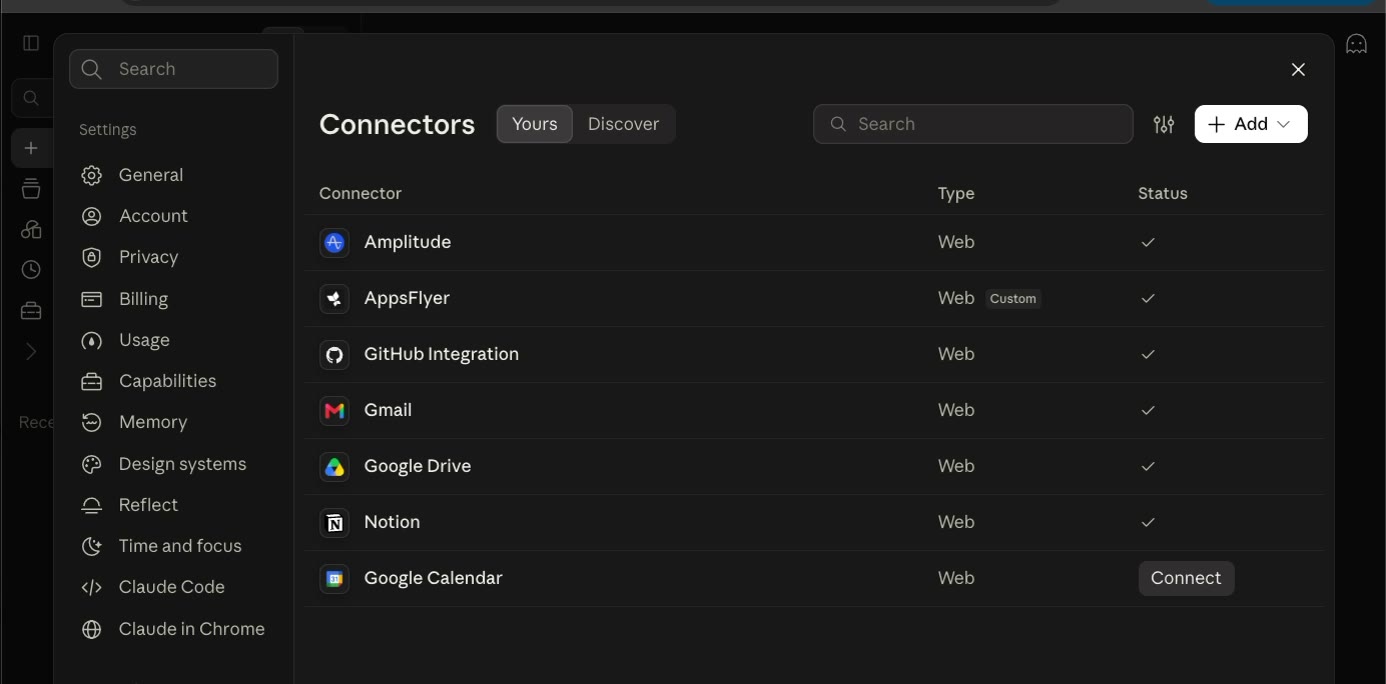
2. Add a custom connector. Click Add, then Add custom connector. Name it OneFit AI, paste https://onefitai.com/mcp as the MCP server URL, and click Continue.
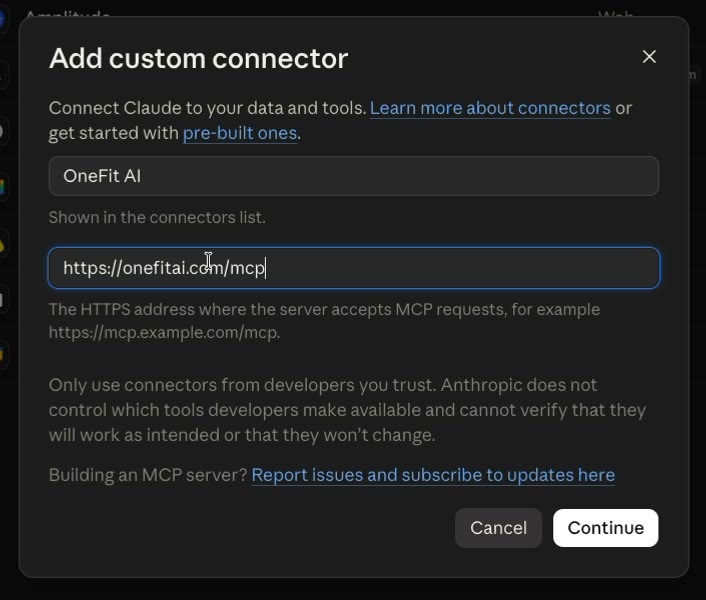
3. Keep the default sign-in options and click Add. Claude checks the server and finds OneFit AI's sign-in on its own. Leave Sign in now and Use Claude's published identity selected.
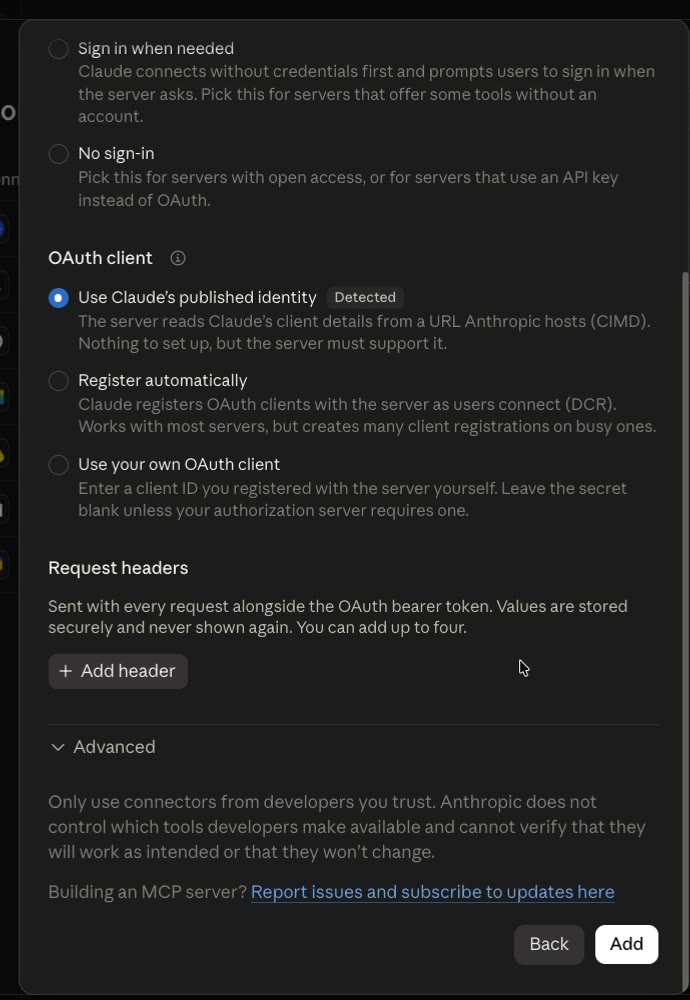
4. Click Connect.
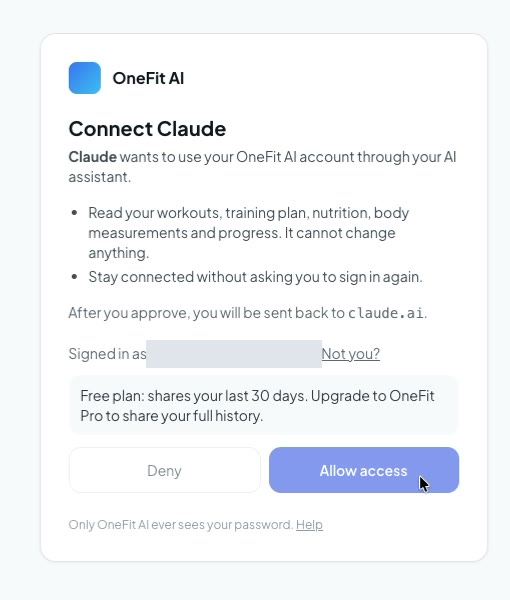
5. Sign in to OneFit AI and allow access. A OneFit AI page opens. Sign in with Apple or your email, check what the connection will share, and choose Allow access. More on this page below.
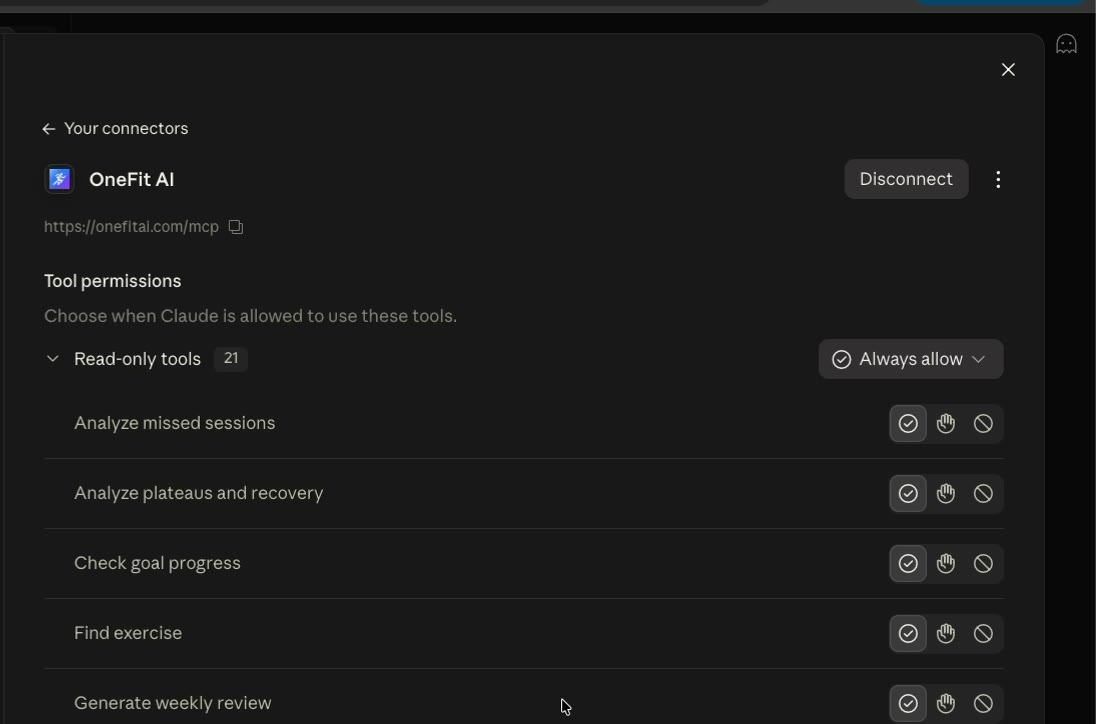
6. You are connected. Claude lists OneFit AI with 21 read-only tools. You can let them run automatically (Always allow) or have Claude ask before each one.
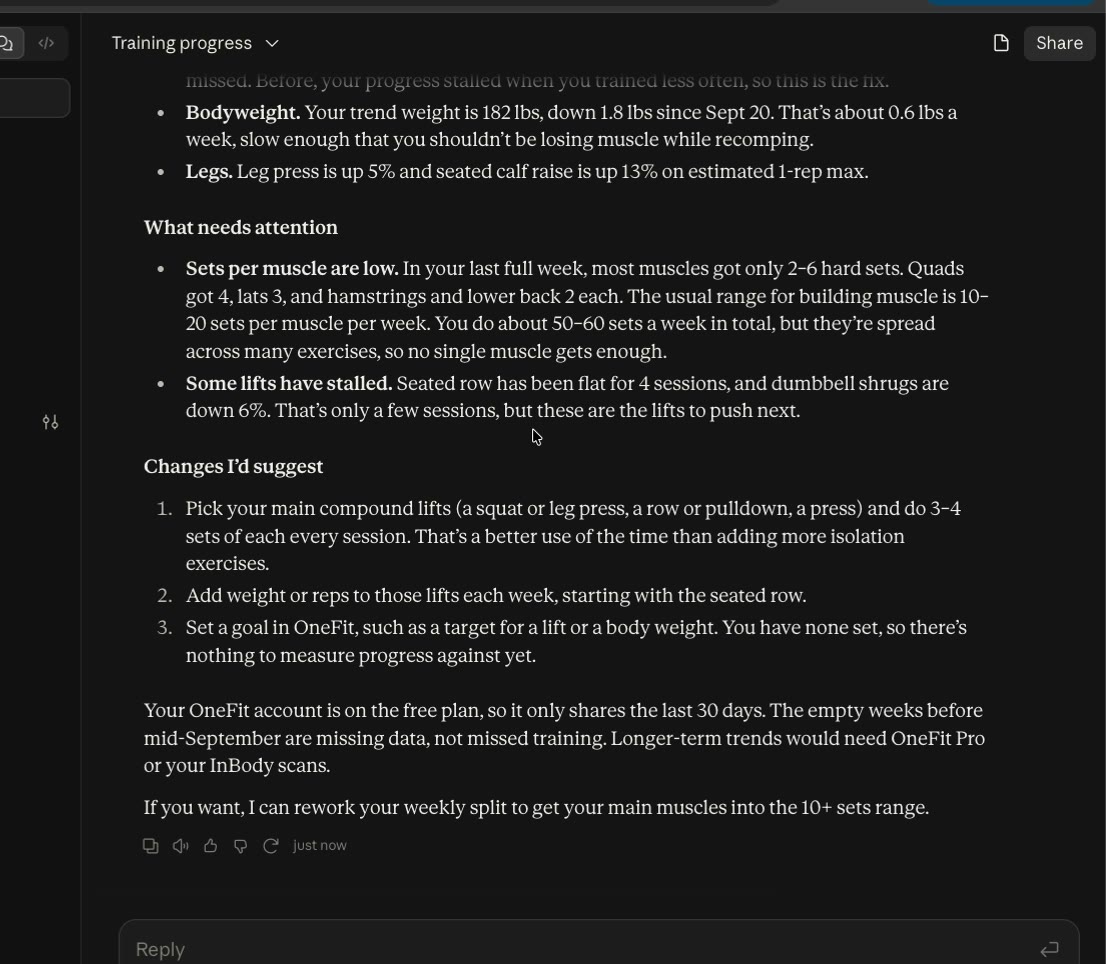
Start a new chat and ask about your training. Claude decides when to use the OneFit AI tools; you will see each call as it happens.
Connect ChatGPT
ChatGPT adds custom MCP servers as plugins on its paid plans. We set this up on ChatGPT Plus.
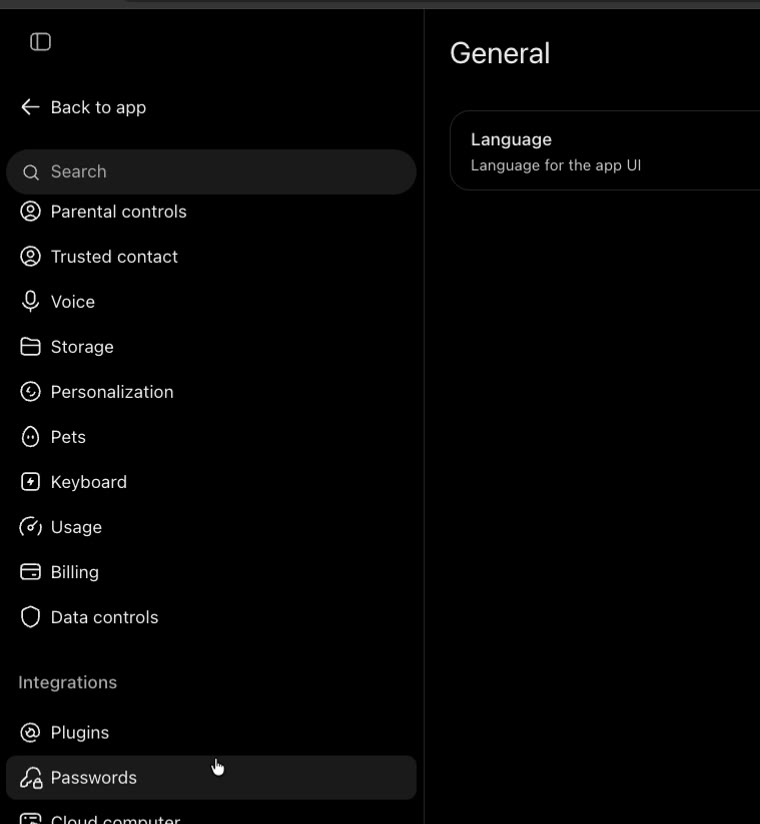
1. Open Settings, then Plugins. Click your name at the bottom left of ChatGPT, choose Settings, then Plugins under Integrations.
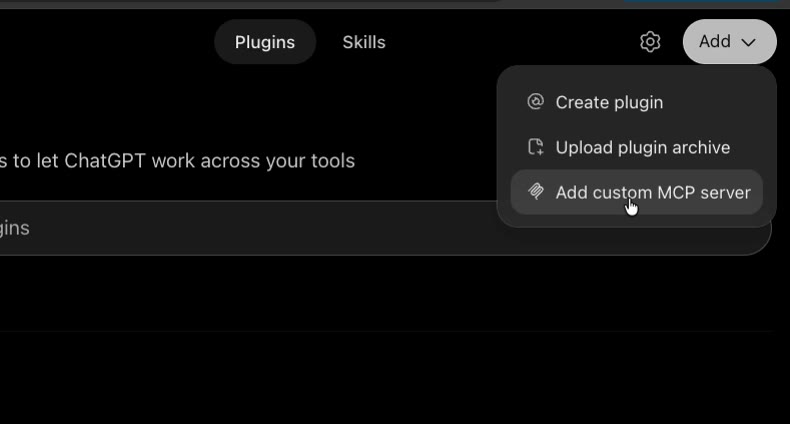
2. Add a custom MCP server. On the Plugins page, click Add at the top right, then Add custom MCP server.
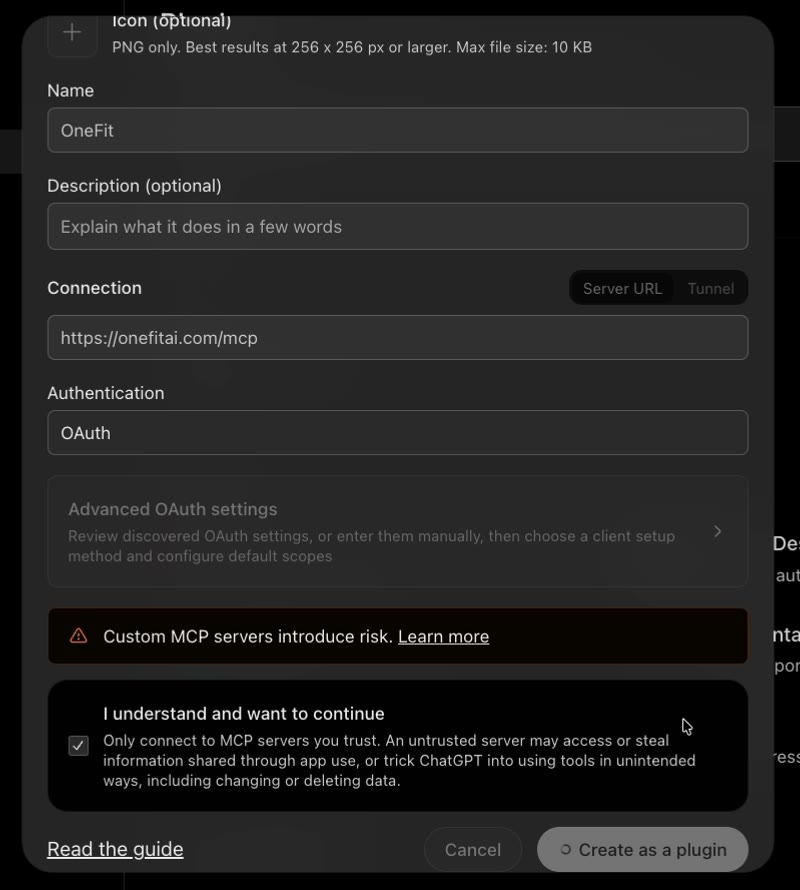
3. Fill in the form. Name it OneFit, paste https://onefitai.com/mcp as the server URL, keep OAuth as the authentication, tick I understand and want to continue, and click Create a plugin.
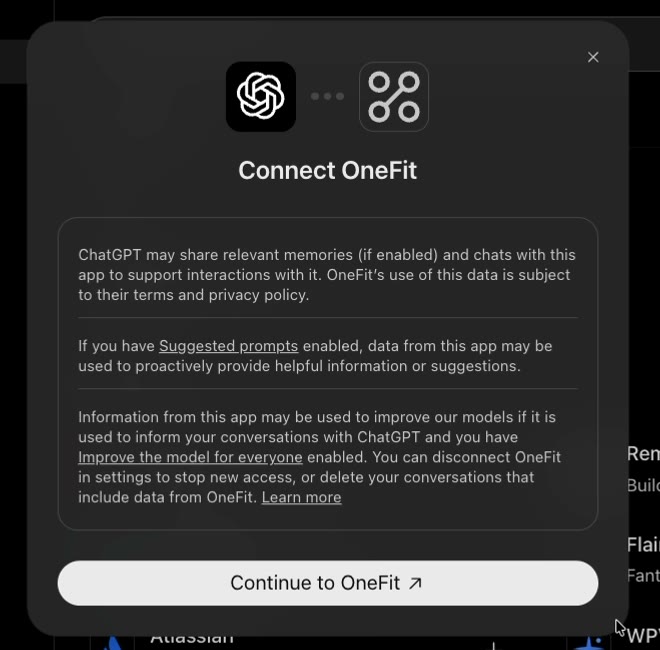
4. Click Continue to OneFit.
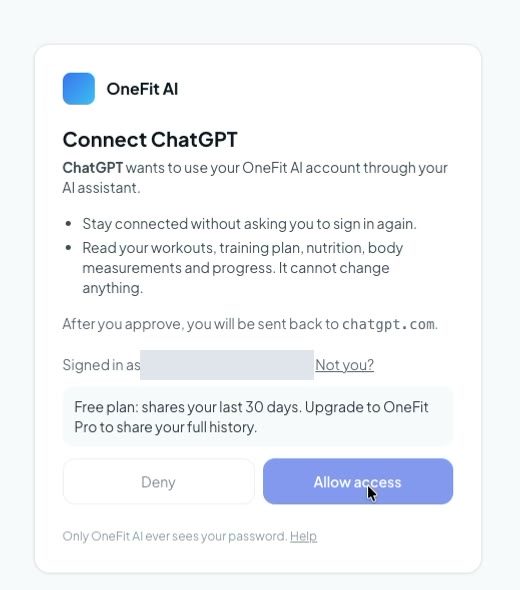
5. Sign in to OneFit AI and allow access. The same OneFit AI page as for Claude, this time saying Connect ChatGPT.
You land back in ChatGPT, connected. Start a new chat and ask. Mentioning OneFit in the question, as in "look at my OneFit workouts from the last few weeks", makes sure ChatGPT reaches for the plugin.
Connect Claude Code
If you live in the terminal, one command does it:
claude mcp add --transport http onefit https://onefitai.com/mcp
The first time Claude Code uses it, your browser opens the OneFit AI sign-in page. After you approve, the browser hands the connection back to Claude Code on your own machine, and the sign-in page tells you that is where it is going.
The OneFit AI sign-in page
Every assistant sends you through the same page on onefitai.com. It shows which assistant is asking, what it will be able to read, which account you are signed in as, and where you will be sent back to. Your OneFit AI password never goes to Claude or ChatGPT; the assistant gets a token that only works for reading your OneFit AI data, and only through this connection.
Free and Pro
Connecting is free for every OneFit AI account.
| Free | OneFit Pro (trials included) | |
|---|---|---|
| Connect Claude, ChatGPT, Claude Code | Yes | Yes |
| History the assistant can see | Last 30 days | Everything you have logged |
| Requests a day | 50 | 500 |
| Your plan, rules, form tips, knowledge base | Yes | Yes |
Thirty days is enough to ask how this week went, what to eat tonight or which lifts stalled this month. Questions like "How has my squat moved since spring?" or "Compare this block to my last one" need the full history. On the free plan the assistant tells you when an answer only covers the last month, so you are never left guessing why it cannot see further back.
One question usually takes three to six requests, so 50 a day is roughly ten questions. You can start a OneFit Pro trial or upgrade in the OneFit AI app under Profile, and the connection picks up your full history on the next question. There is no need to reconnect.
What the assistant can and cannot see
It can read your workouts and exercise history, personal records and trends, your active plan and its templates, training insights, missed sessions, goal progress, nutrition status, body weight and measurements, the dates and angles of your progress photos, your saved training rules, and the OneFit AI help and training knowledge base.
It cannot see your conversations with Ori, it never sees your progress photos themselves, and it cannot write anything. Changing your plan stays with Ori, the coach inside the app, where every change is a card you approve. Every request an assistant makes is recorded against your account, so if something ever looks wrong, support can see exactly what was read and when.
Disconnecting
In Claude, open Settings, Connectors, choose OneFit AI and click Disconnect. In ChatGPT, open Settings, Plugins and remove the OneFit plugin. Either way the assistant loses access straight away. A Connected Apps screen inside the OneFit AI app, where you can see and revoke every connection in one place, is coming in a later release.
If something does not work
- "This request has expired" or "already answered". Each sign-in request is valid for ten minutes. Go back to your assistant and connect again.
- Sign in with Apple did not finish. The page shows why on the sign-in form. Try again, or sign in with your email instead.
- The assistant answers without your data. Ask again and mention OneFit, for example "check my OneFit workouts".
- "Used its requests for today". You have hit the daily limit for your plan. It resets the next day.
Questions, or a connection that will not go through: contact support.
Get OneFit AI
Log your training with Ori, then ask about it anywhere you already chat with AI.

Turn this into your plan
Track your workouts and nutrition together in OneFit AI, with optional Ori AI coaching. Free to download.